
Ever feel like your WordPress website is trying to show everything to everyone at once?
Many site owners end up with cluttered pages where widgets appear in the wrong places – contact forms on thank-you pages, newsletter signups after someone has already subscribed, or social feeds that push the main content down.
The truth is, widgets are incredibly useful, but only when they appear at the right time and in the right place. That’s why smart widget placement is key to improving the user experience.
Luckily, you don’t need to be a coding expert to take control. After helping users manage many different WordPress sites, we’ve found simple ways to show or hide widgets exactly where you want them.
In this guide, we’ll walk you through the easiest methods to make your widgets work better. So, your WordPress site stays clean, relevant, and easy to use. 🧹
Why Show or Hide Widgets on WordPress Pages?
Showing or hiding widgets on specific WordPress pages helps you display the right content at the right time. This way, visitors see what’s most useful instead of unnecessary distractions.
WordPress widgets allow you to add additional content to your site’s sidebar, footer, and header. They make important site components, like a contact form, social media buttons, sales offers, or your most valuable pages, more visible to visitors.
For example, displaying a search box or recent posts widget on the checkout page can distract customers and stop them from completing their purchase. But showing discount coupons for products and services in the widget area can increase your sales.
Similarly, you may want to keep your homepage clean and reduce distractions. Hiding widgets on the homepage will keep it clutter-free and increase user engagement on your WordPress website.
Sadly, WordPress doesn’t offer an option to show or hide widgets by default. That said, you can still display widgets on specific pages using a WordPress plugin.
In the next section, we will show you how to show or hide your WordPress widgets on specific pages. Here’s an overview of all the topics we will cover in this guide:
Showing/Hiding WordPress Widgets on Specific Pages
You can easily hide or show widgets on specific pages using Widget Options. It’s a complete widget-management plugin that helps you assign and restrict widgets for different pages, posts, and devices.
💡 Note: This tutorial is for classic WordPress themes that use the Appearance » Widgets screen. If you use a block theme, you’ll manage widget and element visibility from the Site Editor instead, as the Widgets screen isn’t available.
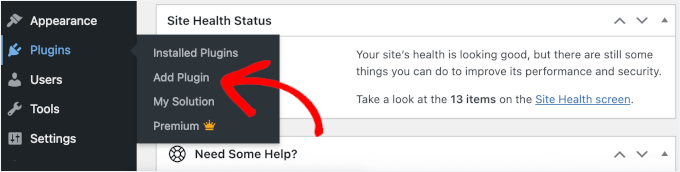
To get started, you’ll first need to install and activate the Widget Options plugin. From your admin area, go to Plugins » Add Plugin.
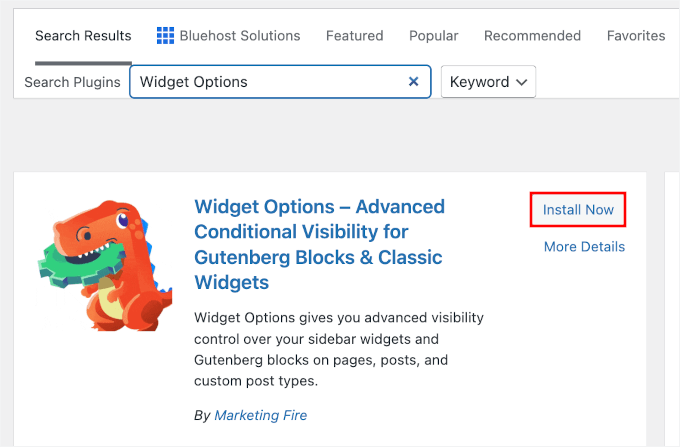
On the next screen, use the search bar to quickly find the plugin.
After that, you can click ‘Install Now’ and ‘Activate’ to complete the process.
For more details, please see our step-by-step guide on how to install a WordPress plugin.
Upon activation, you can head to Settings » Widget Options from the WordPress admin sidebar. Then, you’ll find different options the plugin offers to customize your widgets.
Before everything else, make sure that the ‘Classic Widgets Screen’ option is enabled.
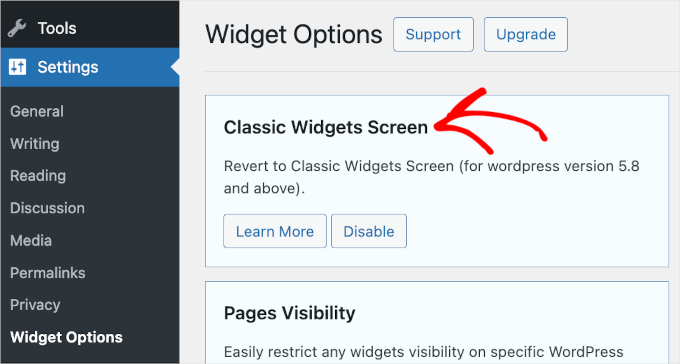
This disables the modern block-based widgets editor and restores the classic interface, making it much easier to manage these specific visibility settings.
After that, you’ll want to find the ‘Pages Visibility’ section and click the ‘Configure Settings’ button.
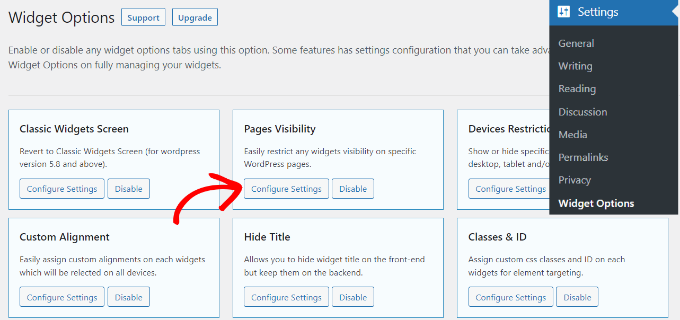
From here, you can control where your widgets will be visible and choose where you don’t want to display them.
By default, the plugin will already have the post types (like pages and posts), taxonomies (categories and tags), and miscellaneous tabs enabled. However, you can uncheck the box for any option to customize the visibility of widgets on different pages.
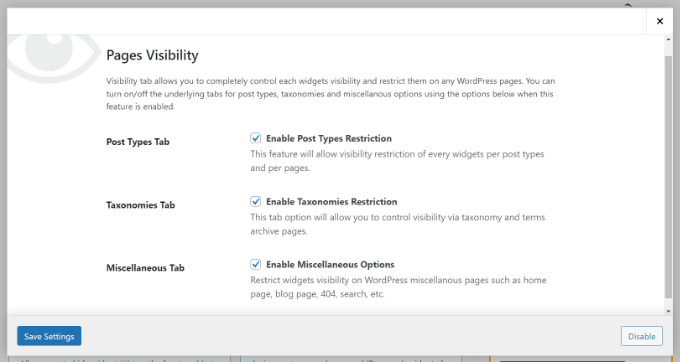
Once you are done, simply click the ‘Save Settings’ button to store your changes.
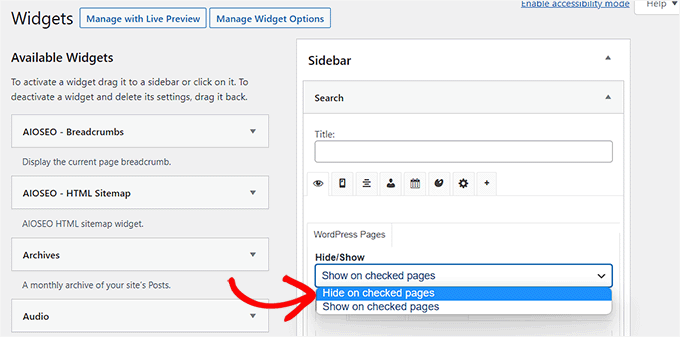
Now, you’ll want to head to Appearance » Widgets from your WordPress admin sidebar. Then, simply click on any widget you want to show or hide. This will expand the widget settings, and you’ll see options for widget visibility.
Under the ‘Hide/Show’ dropdown menu, you can select the relevant option: ‘Hide on checked page’ or ‘Show on checked pages’.
By default, the widget will be hidden on the checked pages, but you can change that to show widgets on the checked pages instead.
Next, let’s see the configuration options for the ‘Hide/Show’ feature.
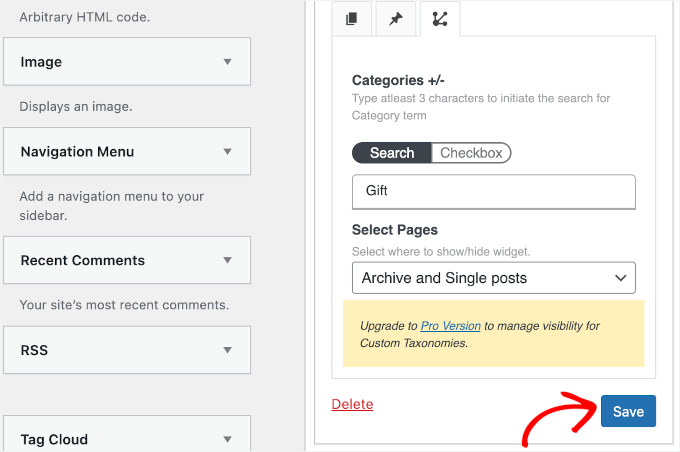
Under the dropdown, you’ll find tabs for ‘Pages,’ ‘Post Types,’ and ‘Taxonomies’ (Categories and Tags).
The ‘Pages’ tab provides options to hide/show widgets on the home/front page, blog section, archives, 404 pages, and search page. Go ahead and choose a page.
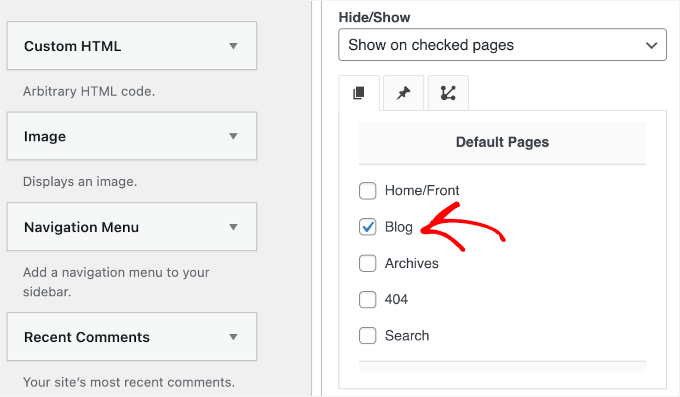
After that, you can go to the ‘Post Types’ tab and choose which pages you want to hide/show the WordPress widget.
Next, you can switch to the ‘Taxonomies’ tab. Here, you can select specific WordPress categories or tags where you want to show or hide the widget. This means the widget will be displayed or hidden for the blog posts in that specific WordPress category.
Once done, don’t forget to click the ‘Save’ button so you don’t lose your progress.
You can now visit your website to see it in action.
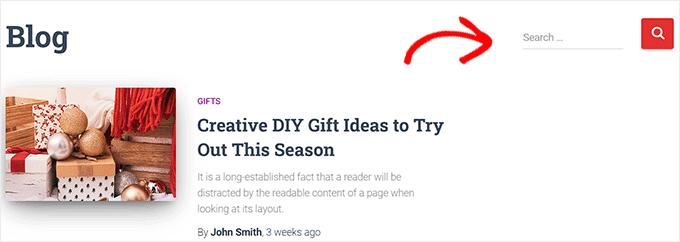
For this tutorial, we have only displayed the ‘Search’ widget on the ‘Blog’ page and hidden it on all the other pages on our WordPress website.
Bonus Tip: Removing Inactive Widgets in WordPress
To go a step further, you may want to remove inactive widgets.
Especially if you’ve recently switched your WordPress theme, then you might have noticed some widgets being moved to the ‘Inactive Widgets’ section. This happens because the new theme doesn’t have widget areas that match those widgets.
These inactive widgets can clutter your site, so it’s a good idea to clean them up. To do this, head over to Appearance » Widgets in your WordPress dashboard and scroll down to the ‘Inactive Widgets’ section.
From there, simply click the ‘Clear Inactive Widgets’ button to remove them permanently.
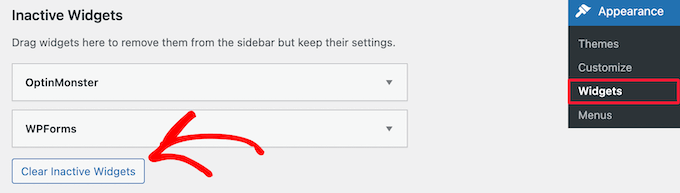
⚠️ Note: This action cannot be undone, so make sure you don’t need to save any settings from these widgets before clearing them.
For detailed instructions, check out our tutorial on removing inactive widgets in WordPress.
FAQs: Showing/Hiding Widgets in Specific WordPress Pages
To make the most out of your site’s functionality, knowing where and when to display widgets can be crucial. Here are some common questions we receive about managing widget visibility:
How do I add a widget to a specific page in WordPress?
To add a widget to a specific page, you’ll need a plugin like Widget Options. Once installed, you can assign widgets to specific pages from the widget settings under Appearance » Widgets in your WordPress dashboard.
How do I hide the sidebar on a specific page in WordPress?
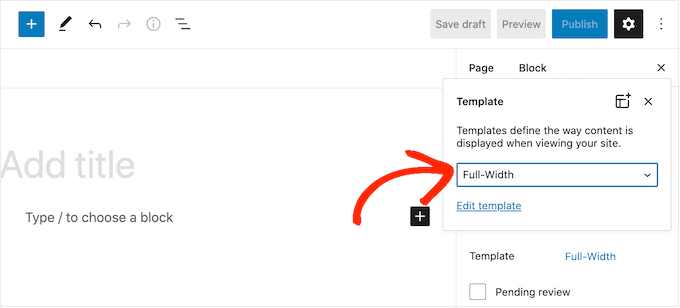
If your theme supports it, you can hide the sidebar on a specific page in WordPress. For instance, you can do it by editing the page in the WordPress content editor and selecting the ‘Full-Width’ template from the ‘Page Attributes’ menu.
Can I control widget visibility without a plugin?
By default, WordPress does not offer built-in options to control widget visibility across different pages. Using a plugin like Widget Options is a user-friendly way to manage this functionality.
How do I exclude pages from the menu in WordPress?
To exclude pages from a menu in WordPress, go to Appearance » Menus in your WordPress dashboard. Then, find the page you want to remove in the menu structure on the right.
You can click on the small arrow icon next to the page name to expand its settings. Then, click the ‘Remove’ link.
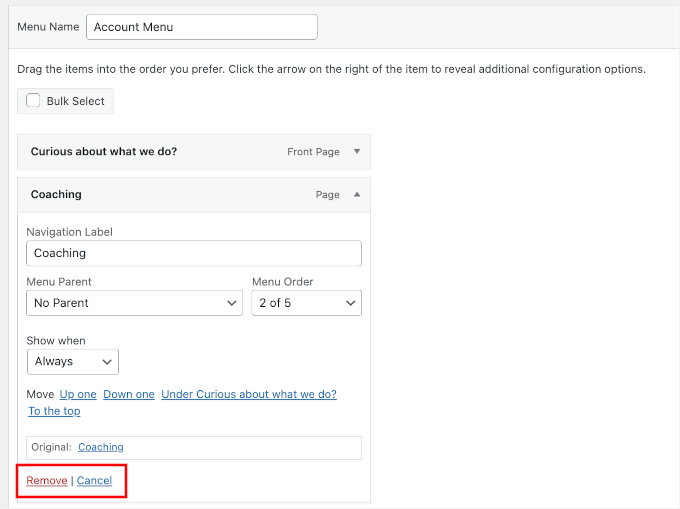
Once you’ve removed the desired pages, click ‘Save Menu’ to apply your changes.
Are there any security risks with widget management plugins?
Using popular and well-maintained plugins from the official WordPress repository is generally safe. Always check plugin reviews, updates, and compatibility before installation.
If the plugin you want to use hasn’t been maintained, then you can check our guide on whether it’s safe to use an outdated plugin.
Additional Resources: More WordPress Widget Tips and Tricks
We hope this article helped you learn how to show or hide widgets on specific WordPress pages. Next, you may also want to see our guides on:
If you liked this article, then please subscribe to our YouTube Channel for WordPress video tutorials. You can also find us on Twitter and Facebook.


