
When visitors land on your website, they’re usually looking for answers. What if you could give them a tool that provides instant, personalized results? That’s exactly what interactive calculators do, and they’re easier to build than you might think.
For example, simple loan calculators have become the highest-traffic pages on many financial websites, generating more leads than any other content type. And with AI technology, you don’t need to be a math genius or coding expert to create these calculators.
In this guide, I’ll show you how to build professional AI-powered calculators for WordPress using simple form templates. Whether you need a cost estimator for your services, an event pricing calculator, or any custom calculation tool, I’ll walk you through the entire process, step by step.
TL;DR: AI calculators boost engagement and capture leads without requiring code. In this guide, I show you how to build them using WPForms (for price estimates and simple math) and Formidable Forms (for complex, AI-driven advice).
Why Add AI-Powered Calculators to Your WordPress Site?
Interactive calculators are proven lead generation tools. They turn passive readers into active participants, keeping visitors on your site longer and encouraging them to share their email addresses to get results.
But traditionally, building them required complex math and custom code. AI changes that by doing the heavy lifting for you.
Here is why AI-powered calculators are a major breakthrough:
| AI Advantage | Benefit for You |
|---|---|
| No Math or Coding Required | Simply describe what you want to calculate in plain English, and the AI writes the formulas for you. |
| Personalized Advice | Instead of just a number, AI can analyze inputs to offer tailored tips, just like a human consultant would. |
| Handles Complex Logic | AI can process messy or vague inputs and still deliver accurate, helpful results instantly. |
Whether you need a price quote tool or a mortgage calculator, AI makes the setup process fast and reliable.
The good news is that reputable plugins like WPForms Pro and Formidable Forms have built their AI features on proven technology, offer excellent support, and are trusted by thousands of WordPress sites.
Ready to build one? Let’s look at the easiest ways to do it:
Method 1: Using WPForms for AI-Assisted Calculations (Easier)
WPForms is perfect when you need calculators with straightforward math and conditional logic. This method works best for price estimators, event budgets, and shipping calculators where you’re multiplying values, adding costs based on selections, or applying discount rules.
The plugin’s AI-powered formula generator is what makes this approach so beginner-friendly. Instead of learning complex formula syntax, you simply describe what you want to calculate in plain English, and the AI converts it into the correct formula for you.
Step 1: Install WPForms and Addons
First, install and activate WPForms Pro. If you need help, see our guide on how to install a WordPress plugin.
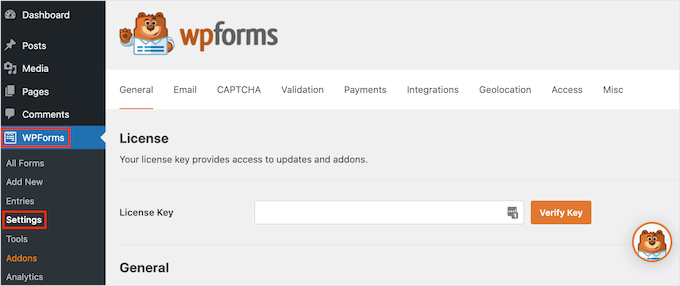
Once activated, head over to WPForms » Settings. Here you can enter your license key into the ‘License Key’ field. You can find this information in your WPForms account or the email you received when you purchased the plugin.
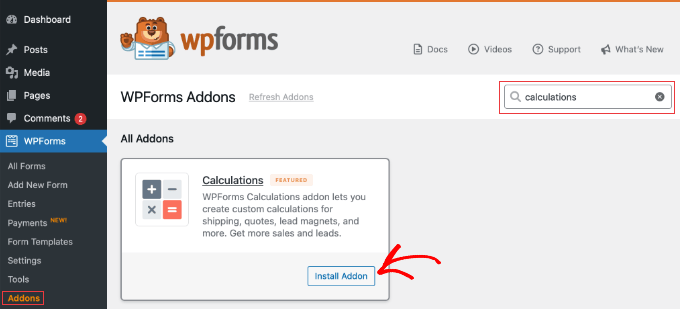
Next, you need to enable the calculations feature. Go to WPForms » Addons, search for ‘Calculations,’ and click the ‘Install Addon’ button.
This feature is included with the Pro plan, so you don’t need to purchase anything separately.
Step 2: Generate the Calculator with AI
Now you need to go to WPForms » Add New Form in your WordPress dashboard.
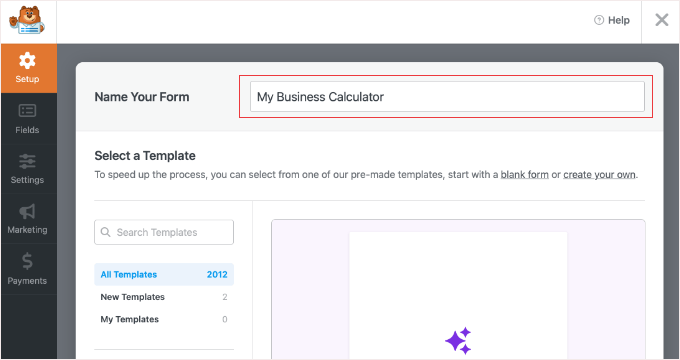
First, enter a name for your calculator at the top of the screen.
To create a calculator using AI, look for the template called ‘Generate With AI’.
Next, click the ‘Generate Form’ button.
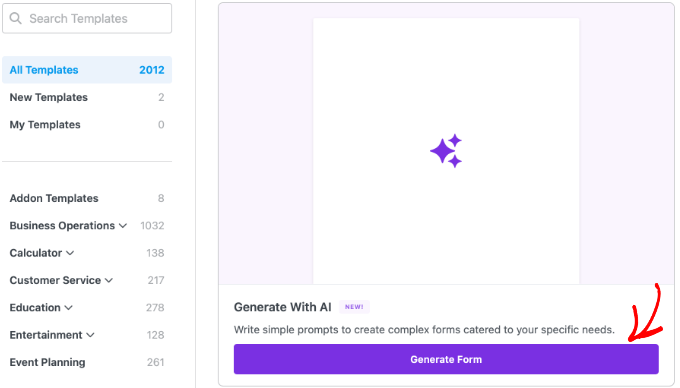
You may see a popup asking to install recommended addons. Click the ‘Yes, Install’ button to ensure all necessary tools are enabled.
In the chat box, you need to describe your calculator in detail. The more specific you are, the better the math will be.
For example:
“Create a wedding cost estimator. Include a number field for guests (multiplied by $50/head), a dropdown for venue type (Hotel adds $1000), and a checkbox for extras (DJ adds $500). Add a Total field at the end.”
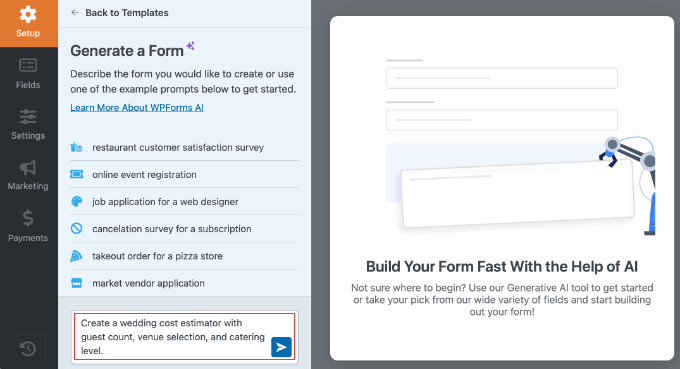
Now you can generate the form by clicking the blue right arrow button. WPForms will automatically build the fields and write the mathematical formulas for you.
For example, here is the form it built using the example prompt above.
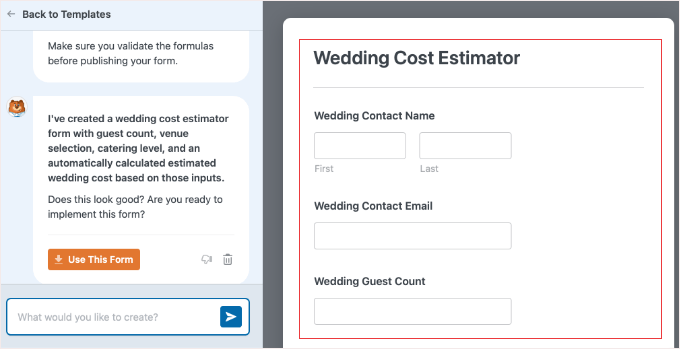
If you are happy with the form, then click the orange ‘Use This Form’ button. Otherwise, you can type in a different prompt to improve the form.
Step 3: Review and Customize the Formula
Since the AI has already written the math, you just need to verify it.
Scroll down to the ‘Total’ field and click it to open the settings. Switch to the ‘Advanced’ tab. You should see ‘Enable Calculations’ toggled on, with the formula code already in the box.
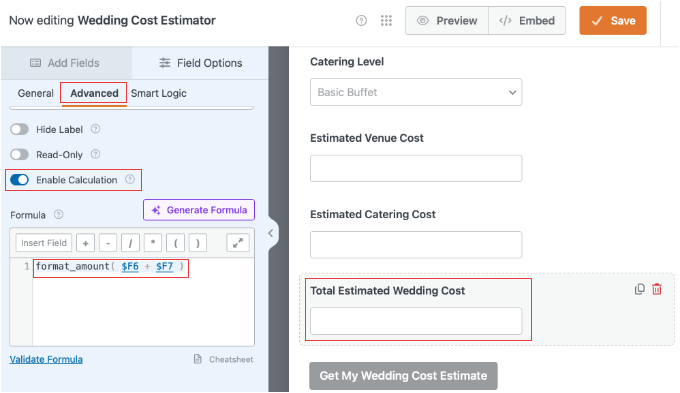
If it looks correct, then you don’t need to do anything else.
However, if you want to change the logic, simply click the ‘Generate Formula’ button.
For example, to add a tax rate you forgot to mention in the prompt, you can tell the AI: ‘Take the current formula and add 10% tax to the result.’ It will rewrite the code for you instantly.
Important: Generating a new formula will overwrite the existing code in that field. I recommend testing your form first (Step 4) before making changes here.
Step 4: Preview and Embed
Before publishing, click the ‘Preview’ button at the top of the form builder. This opens your calculator in a new tab where you can test it with real values. Here, you can watch the total update in real time as you change field values.
Once you’re satisfied with how your calculator works, click the ‘Save’ button and then ‘Embed’ to add it to any page or post on your WordPress site.
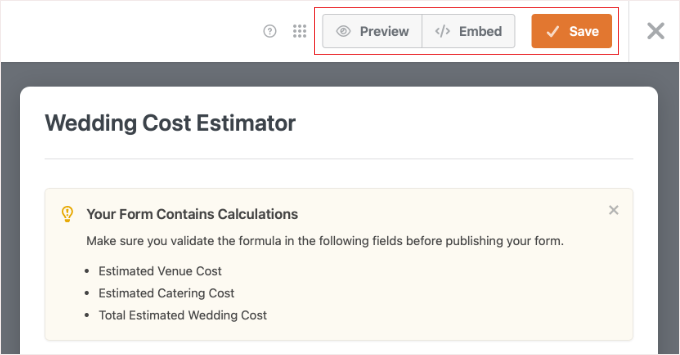
Alternatively, you can add it to a post or page manually using a WPForms block. For details on how to do this, just see our guide on how to embed WordPress forms.
Method 2: Using Formidable Forms for Advanced AI Logic
Formidable Forms is ideal for advanced calculators that require the result to be advice (text) rather than just a number.
The key difference here is the AI Field, which uses natural language processing to handle complex calculations and generate human-readable advice. While Method 1 is great for math, use this method if you need AI to analyze the data and make a recommendation.
In this method, I will show you how to use the AI generator to build the input fields, and then manually add an AI Field to handle the logic.
Step 1: Install Formidable Forms and the AI Addon
First, you need to install and activate Formidable Forms. If you need help, please see our guide on how to install a WordPress plugin.
Note: You must have the Business plan or higher to use AI features.
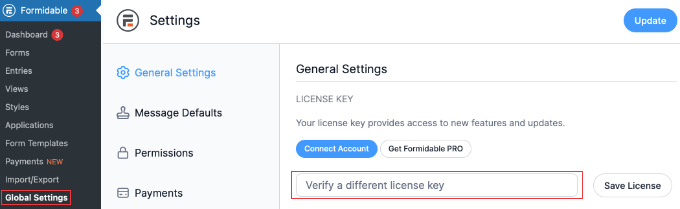
Upon activation, go to Formidable » Global Settings to enter your license key. You can find this information in your account on the Formidable Forms website or in the email you received when you purchased the plugin.
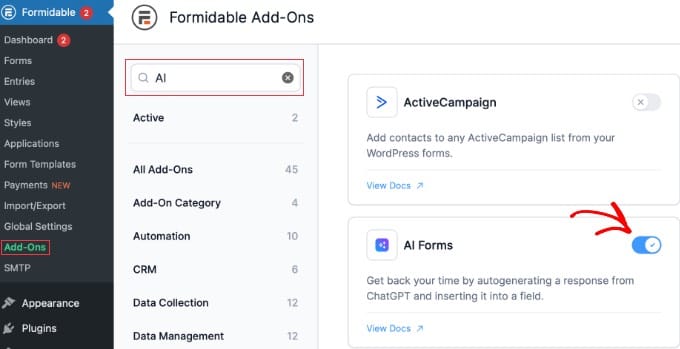
Next, install the Form AI addon. Go to Formidable » Add-Ons and search for ‘AI’.
Once you find the add-on, you can enable it using the toggle switch. Make sure the toggle switches to ‘Active’ (blue).
That’s it. Unlike some other tools, Formidable Forms handles the AI connection for you, so you don’t need to set up your own API keys.
Step 2: Generate the Calculator Inputs With AI
Now, you need to go to Formidable » Forms and click the ‘+ Add New’ button.
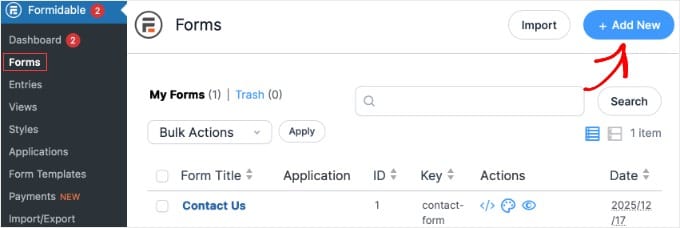
After that, you can click the ‘Create with AI’ button.
You will use this to build the ‘skeleton’ of your calculator, which is the questions you want to ask the user.
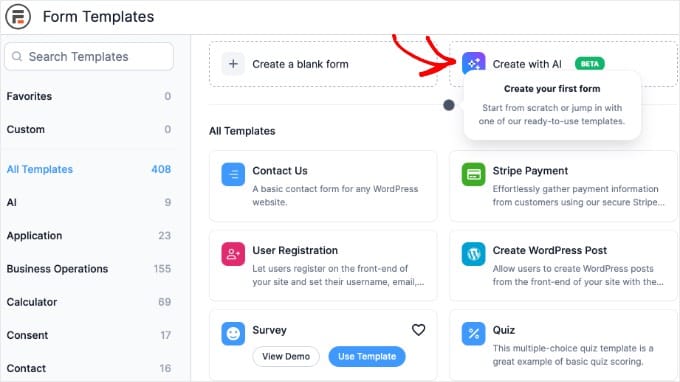
You will see a dropdown menu to select the AI Model (such as the latest Gemini or GPT model). The default option is usually fast and accurate enough for most calculators, so you can leave it as is.
Next, you need to type a prompt that describes the inputs. For example:
‘Create a Mortgage Calculator form. Ask for Loan Amount, Interest Rate, and Loan Term.’
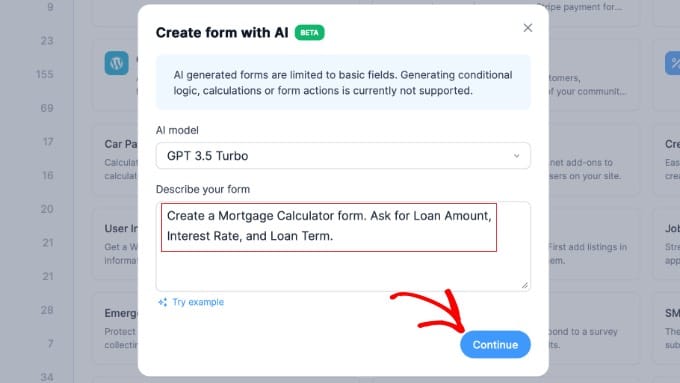
Now, you can click the ‘Continue’ button. The plugin will build the form with the correct fields for you.
Step 3: Add the AI Field
The next step is to add the logic and calculations.
Look in the left sidebar for the ‘AI’ field and drag it into your form. This is the field that will do the calculation.

Click on the AI field to open its settings. There are three things you need to configure:
- Hide Response: Make sure this box is unchecked so the answer appears on the form.
- Guide Prompt: This is the most important part. By default, AI will explain how it did the math in too much detail. To get a clean result, you need to tell it to act like a machine.
Copy and paste this exact text into the box:
“You are a strict calculator. Do NOT show formulas, math, or algebra. Only provide the final numerical answer formatted as currency, followed by one sentence of advice.” - AI Question: The command center. This is where you tell the AI what to calculate.
In the AI Question box, you write the prompt that is sent to the AI. To include the user’s answers in that prompt, you need to use Field IDs (which look like [100]).
Click the three dots (…) button in the bottom-right corner of the text area to select fields from your form. For example, if you select the ‘Loan Amount’ field, Formidable will show you the correct field ID.
For example, your prompt might look like this (make sure to use your own field IDs):
“Calculate the monthly payment for a loan of [100] with a rate of [101] over [102] years. Show the math and then give a recommendation.”
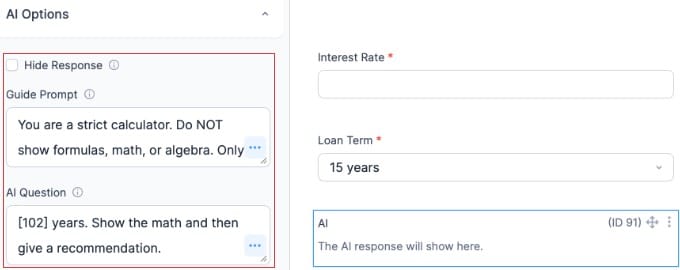
You can also customize the prompt to change the format of the answer. For example, you might add: ‘Format the answer as a bulleted list to make it easier to read.’
Step 4: Configure Form Settings
You need to adjust a few settings to make sure the calculator feels like a real tool and not a standard contact form.
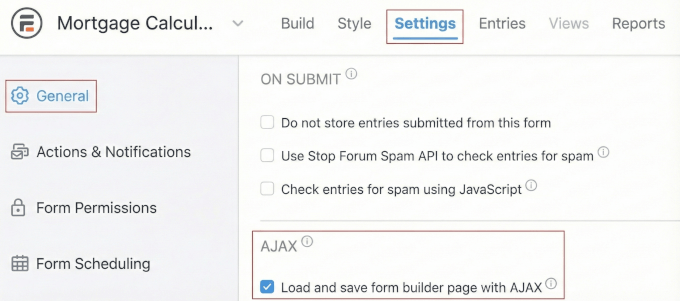
Go to the Settings » General tab, and scroll down to the ‘AJAX’ section.
First, ensure that the ‘Load and save form builder page with AJAX’ setting is checked. This is crucial for calculators because it stops the whole page from reloading every time a user clicks the button, and the result will appear instantly.
Second, verify that ‘Do not store entries’ setting is unchecked. Since this is a lead generation tool, you want to save every calculation so you can follow up with potential clients later.
Next, click on the ‘Actions & Notifications’ tab in the left sidebar.
Click on the ‘Confirmation’ action to expand its settings. Now, scroll to the bottom and check the box labeled ‘Show the form with the confirmation message’. This keeps the answer visible on the screen.
Then change the Message text to a headline like ‘Calculation Complete.’
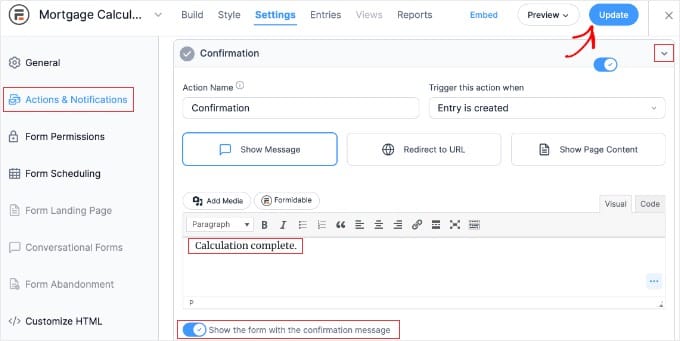
Make sure you click the ‘Update’ button to save your form. Now your calculator allows unlimited attempts and displays the result perfectly every time.
Step 5: Display the Results
Now that your calculator is configured, it is time to add it to your website. You can use the ‘Embed’ button at the top of the screen to add it to a new or existing page. Or you can easily add it manually using the instructions below.
Simply create a new page or edit an existing one where you want the calculator to appear. In the WordPress block editor, click the plus (+) button to add a new block.
You need to search for ‘Formidable Forms’ and click to add the block to your page. In the block settings, you will see a dropdown menu. Simply select the calculator form you just created.

Now you can click the ‘Publish’ or ‘Update’ to save your page.
You can visit the live page to test your new AI calculator in action.

Bonus Tips to Get More From Your AI Calculators
Creating your calculator is just the beginning. The real value comes from sharing it strategically and understanding how visitors use it to make better business decisions.
Here are three quick ways to get more from your AI calculators:
1. Track Your Results
You need to know if visitors are using your calculators. I recommend using MonsterInsights to see exactly how many people start your calculator versus how many complete it.
This helps you spot if your form is too long or complicated. For a full walkthrough, see our guide on how to set up form tracking in Google Analytics.
2. Promote It on Social Media
You can’t embed a calculator directly into a social media post, so you need a shareable link. The best approach is to create a distraction-free page that hosts only your calculator.
This gives you a clean URL to share on Instagram, LinkedIn, or Facebook. For step-by-step instructions, see our guide on how to create a landing page in WordPress.
3. Proven Calculator Ideas
Stuck on ideas? Here are four proven calculator types that work across different industries:
- Mortgage Calculator (Real Estate): Use Method 1 (WPForms) to calculate monthly payments based on loan amount and interest rate.
- Event Cost Estimator (Events/Catering): Use Method 1 to add costs based on venue selection and guest count.
- ROI Calculator (B2B Services): Use Method 2 (Formidable Forms) to estimate potential returns on investment and offer context on why the numbers matter.
- Health/Macro Calculator (Fitness): Use Method 2 to process complex variables such as age, weight, and activity level to provide personalized health advice.
Regardless of your industry, the best calculator solves a specific problem for your audience. I recommend starting with a simple idea from this list and expanding its features as you get more comfortable with the tools.
Privacy and Legal Considerations for Online Calculators
When you collect data through calculators, you are responsible for protecting it. Whether this information is email addresses or financial details, you need to comply with privacy regulations like GDPR.
First, always obtain consent. This means you need to add a clear checkbox asking users to agree to your terms before they submit the form. For a full checklist, see our guide on how to create GDPR compliant forms in WordPress.
Second, be transparent about AI. If you are using Method 1 (WPForms), the math is calculated by the plugin. However, if you use Method 2 (Formidable AI), the user’s input is sent to OpenAI (ChatGPT) for processing. You should explicitly mention this third-party data sharing in your privacy policy.
Expert Tip: WPConsent is the best WordPress privacy compliance plugin that allows you to create cookie consent banners, privacy pages, and more. For more information, just see our complete WPConsent review.
Finally, you need to ensure that your website is secure. You should always use SSL encryption to protect the data being transmitted through your lead-generation calculators. If you haven’t set this up yet, check out our tutorial on how to add SSL to WordPress.
Frequently Asked Questions About Using AI-Powered Calculators
Getting started with AI-powered calculators in WordPress might feel overwhelming, especially if you’re new to these tools.
This FAQ section will answer common questions and offer straightforward guidance on setting up and using AI calculators.
1. How do you build a calculator in WordPress without using advanced mathematics?
To build a calculator in WordPress without advanced mathematics, consider using plugins like WPForms Pro or Formidable Forms that offer AI-powered features.
With WPForms Pro, you can use a generative AI feature that converts text to formulas. You simply describe the calculations in plain English, and the AI translates them into mathematical formulas automatically.
This method is beginner-friendly and ideal for calculators like price estimators or shipping calculators.
2. Does WordPress have an AI tool for creating calculators?
While WordPress itself does not have a built-in AI tool for creating calculators, plugins like Formidable Forms provide AI-powered fields that allow you to design complex calculators.
These plugins enable users to input natural language instructions, which the AI then processes into actionable calculations, making it a powerful tool for building sophisticated calculators like ROI calculators.
3. What is the best AI plugin for WordPress calculators?
The best AI plugin for WordPress calculators depends on your needs.
For those seeking an intuitive interface with AI-generated formulas, WPForms Pro is an excellent choice. If your project requires more logic or AI-driven calculations, consider Formidable Forms, which offers specialized AI fields for more complex scenarios.
4. How do I choose which calculator template to use for my project?
Choosing the right calculator template depends on your specific project requirements.
If you’re looking to build a simple price estimation calculator, templates like billing or order forms in WPForms Pro are suitable. For more complex computations, such as ROI or mortgage calculations, consider starting with specialized templates in Formidable Forms.
5. How do you enhance user engagement with AI calculators on a WordPress site?
To enhance user engagement with AI calculators, make sure your forms are interactive and visually appealing. AI calculators can be embedded in strategic locations on your site, such as landing pages or blog posts, to capture attention.
You can enhance engagement further by sharing your calculators on social media with clear calls to action and enticing previews.
Next Steps for Lead Generation
Now that you know how to build AI-powered calculators in WordPress, it’s time to create one for your own site. Start with a simple calculator that solves a real problem for your audience, whether that’s estimating costs, calculating returns, or providing personalized recommendations.
The beauty of using plugins like WPForms Pro and Formidable Forms is that you can start small and expand as you learn.
Your first calculator doesn’t need to be perfect. Just get it live, see how visitors use it, and refine it based on their feedback.
Remember to test your calculator thoroughly before making it public, handle user data responsibly, and keep optimizing based on analytics.
And for more ideas on how to get leads on your website, see our ultimate guide to lead generation in WordPress.
If you found this guide helpful, you might also want to check out our tutorial on how to create a secure contact form in WordPress and our guide on WordPress conversion tracking made simple.
If you liked this article, then please subscribe to our YouTube Channel for WordPress video tutorials. You can also find us on Twitter and Facebook.


